Maya Pole Vector Setup: Ensuring Planar Legs for Smooth IK Control
Creating a character rig in Maya is a delicate balance of art and engineering. For animators, nothing is more frustrating than an IK (Inverse Kinematics) leg that behaves erratically, "popping" into an unexpected orientation. This common rigging headache often stems from issues with the Pole Vector setup, a crucial component that dictates the direction of your character's knees or elbows. A well-implemented pole vector ensures that your IK chains bend predictably, maintaining the crucial "planar" alignment of the limb. This article will dive deep into the best practices for setting up Maya pole vectors, focusing on how to prevent those annoying joint pops and deliver a robust, animator-friendly rig.
Understanding the Essence of Pole Vectors in Maya IK
At its core, an IK handle solves the position of an entire joint chain by simply moving the end effector. However, for a multi-joint chain like a leg (hip-knee-ankle) or an arm (shoulder-elbow-wrist), there are infinite ways the middle joint (knee or elbow) can bend to reach the target. Without additional guidance, Maya's IK solver might choose an undesirable or inconsistent bend, leading to sudden flips or twists – the dreaded "joint popping."
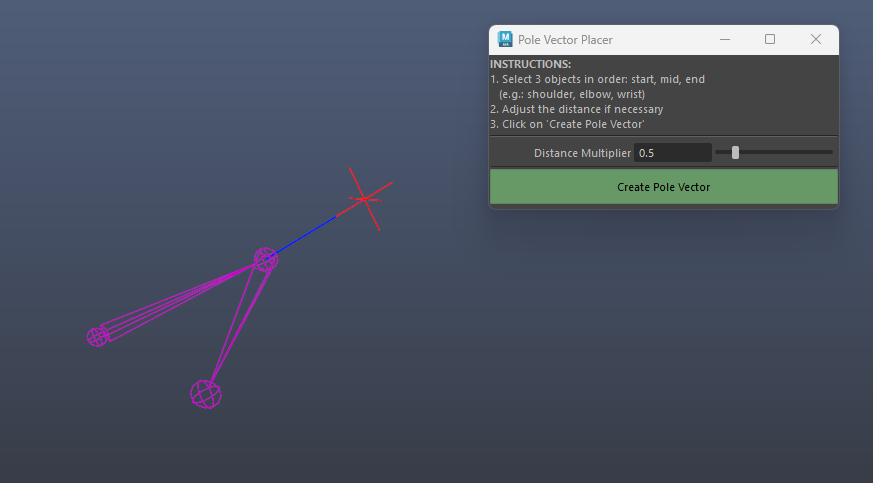
This is where the pole vector comes in. A pole vector constraint is a powerful tool that tells the IK solver precisely which direction the middle joint of a three-joint chain should point. Imagine a plane defined by the start joint, the end joint, and the pole vector control. The middle joint of the IK chain is then forced to lie within this plane, orienting itself towards the pole vector. By carefully positioning this control, riggers gain explicit control over the knee's or elbow's bending direction, preventing the IK solver from making arbitrary decisions. It’s an indispensable feature for achieving natural and fluid character motion.
The Root Cause of Joint Popping: Non-Planar Leg Geometry
Many riggers, especially those newer to the craft, encounter the frustrating issue where applying a pole vector constraint immediately causes a joint, often the foot, to unexpectedly snap to a new angle. This "pop" is a clear indicator that the underlying joint chain – specifically the leg – is not inherently planar, or that the pole vector control itself is incorrectly aligned. The IK solver, when given a pole vector, attempts to force the middle joint into a specific orientation, and if the existing geometry doesn't naturally support this, a sudden correction occurs. This often leads to a quick fix of unparenting and reparenting, but that's merely a band-aid. The true solution lies in a meticulous setup from the ground up.
Verifying Joint Alignment for Planarity
The foundation of a stable IK leg is a truly planar joint chain. This means the hip, knee, and ankle joints should ideally lie on a single plane when the leg is in its initial bind pose. Here's a detailed checklist to ensure your leg geometry is planar and ready for a pole vector:
1.
Translate Values on Hinge Joints: For the knee and ankle joints, ensure their `translateY` and `translateZ` values are zero (assuming `translateX` is the primary axis along which your joint chain extends). Non-zero values here mean the joint is offset from the primary axis, potentially making it non-planar relative to its parent and child. While the hip joint might have translations, the intermediate joints should maintain this clean alignment.
2.
Joint Orient Consistency: The knee joint, as the primary hinge, should ideally have `jointOrient` values on only *one* axis, with the other two set to zero. This single-axis orientation typically corresponds to the axis around which the knee will bend. For instance, if your knee bends along the Z-axis in its local space, then `jointOrientZ` will have a value, while `jointOrientX` and `jointOrientY` should be zero. You can inspect these values in the Attribute Editor under the `Joint` section. Inconsistent or multiple `jointOrient` values can confuse the IK solver and pole vector constraint, leading to unexpected twists.
3.
Preferred Angle Alignment: Similar to `jointOrient`, any `preferred angle` set for the knee joint (which acts as a hint for the IK solver on its default bend direction) should also be only on the same single axis that holds `jointOrient` values. This reinforces the intended bending direction for the IK chain.
By meticulously checking and correcting these values, you are essentially "flattening" your leg's geometry in its default pose, making it perfectly primed for a pole vector constraint without any initial popping. Remember, the goal is to make the leg's initial state as unambiguous as possible for Maya's solvers. For more detailed troubleshooting on this topic, refer to
Stop Maya Pole Vector Joint Popping: A Rigging Guide.
Crafting a Robust Pole Vector Control: Beyond Basic Placement
Once your leg's joint chain is perfectly planar, the next step is to create and correctly position your pole vector control. This is where many beginner riggers still run into issues, even with a clean joint chain. The key is understanding how the pole vector control relates to the knee's orientation.
Follow these steps for a robust pole vector control setup:
1.
Create Your Control Object: Start by creating a simple NURBS curve control, typically a circle or an arrow shape, that will serve as your pole vector controller. Give it a descriptive name like `L_leg_PV_CTRL`.
2.
Group the Control: This is a critical step. Immediately group your newly created control (`Ctrl+G` or `Edit > Group`). Name the group `L_leg_PV_GRP`. Grouping ensures that you can move and orient the control's *local space* independently from its *world space* position. All transformations should happen on the group.
3.
Match Group to Knee Joint: With the group selected, use `Match All Transforms` (or manually `Match Translation`, `Match Rotation`) to align the group *perfectly* with your knee joint. Select the knee joint first, then `Shift`-select the pole vector group, and go to `Constrain > Match All Transforms`. This will ensure the pole vector group starts at the exact same position and orientation as your knee.
4.
Move the Group in Local Space: This is where the magic happens. Select the pole vector *group* (not the control itself). Change your move tool's `Axis Orientation` to `Object` or `Local` (found in the tool settings). Now, move the group directly forward along the knee's local Z-axis (or whichever axis points away from the knee's bend). The distance should be far enough to be easily selectable and visually distinct from the knee joint.
Why is moving in local space so important? If your knee joint is slightly pointed outward or inward in its local space (even if the overall leg is planar), and you move the pole vector control purely forward in world space, the IK handle will receive conflicting information. It will try to align the knee towards the world-forward direction of the pole vector, while the knee's internal orientation might be slightly off. This conflict forces the leg to twist to accommodate, leading to yet another form of popping or unnatural deformation. By moving the group along the knee's local axis, you ensure the pole vector's influence aligns perfectly with the knee's intended bending plane.
5.
Apply the Pole Vector Constraint: Finally, select your pole vector control, then `Shift`-select your IK handle, and go to `Constrain > Pole Vector`. Your leg should now stay perfectly in place without any popping, and the knee should respond precisely to the pole vector's movement.
For additional strategies to avoid common pole vector headaches, explore
Maya Rigging Tips: Prevent Pole Vector Annoyances.
Additional Pro Tips for Pole Vector Setup
*
Temporary Guide Locators: Before creating your final control, consider placing a temporary locator at the knee joint, matching its orientation. Then, move this locator along the knee's local forward axis. This locator can serve as a precise target to match your pole vector group to, offering an extra layer of precision.
*
Freezing Transforms: While not strictly necessary for the pole vector control itself if you're working with groups, it's generally good practice to `Freeze Transformations` on your control *after* it's in its final position (and after its group has been correctly placed and moved). This sets its default transforms to zero, making it easier for animators to reset or snap it back to its default position.
*
Hierarchy Placement: Typically, pole vector controls are parented under the character's main root control or under the pelvis control. This ensures they move with the character but remain independent for animators to manipulate knee direction.
*
Visualizing Planarity: As a final check, you can create a temporary NURBS plane in Maya and snap its vertices to the hip, knee, and ankle joints. This visual aid will immediately reveal if your joints are truly coplanar.
Conclusion
A robust Maya pole vector setup is fundamental to creating professional-quality character rigs. By diligently ensuring your leg joints are planar, meticulously checking their translate and orient values, and correctly positioning your pole vector controls using local space transformations and proper grouping, you can virtually eliminate joint popping. This attention to detail results in a predictable, stable, and animator-friendly IK system, allowing for smooth, natural motion and significantly improving your rigging workflow. Investing time in these foundational steps will save countless hours of frustration during the animation phase, proving that a solid rig is truly the backbone of believable character performance.