Stop Maya Pole Vector Joint Popping: A Comprehensive Rigging Guide
Few things are as frustrating for a 3D animator or rigger as witnessing a character's leg or arm suddenly "pop" or twist erratically when a pole vector control is applied to an Inverse Kinematics (IK) handle. This common yet vexing issue can break immersion, disrupt animation workflows, and generally add unnecessary headaches to your rigging process. If you've ever found yourself unparenting and reparenting feet just to get a stable pose, you're not alone. The good news is that this joint popping isn't an inevitable part of Maya rigging; it's a solvable problem rooted in specific setup nuances. This guide will demystify the causes of pole vector popping and provide a robust, step-by-step methodology to achieve stable, predictable IK behavior in your rigs.
Understanding the Maya Pole Vector Problem
Before diving into solutions, let's clarify what a pole vector is and why it's so crucial for IK systems. In Maya, an IK handle calculates the necessary rotations for a chain of joints (like a leg or arm) to make its end joint reach a target effector. However, for a 3-joint chain (like upper arm, forearm, hand), there are infinitely many ways the middle joint (elbow) could bend to reach that target. This is where the pole vector comes in.
A pole vector is a control object that dictates the orientation of that middle joint. It tells the IK solver, "Hey, bend towards this point!" Without a pole vector, the IK solver might make arbitrary decisions, leading to unpredictable bends or "flipping." While essential for control, an incorrectly set up pole vector is often the primary culprit behind unwanted joint popping.
The popping typically occurs because the IK solver is trying to reconcile conflicting information: the desired position of the end effector, the initial orientation of the joints, and the pull of the pole vector. If these elements aren't aligned harmoniously, the IK system often overcompensates, resulting in a sudden, jarring snap of the joints, particularly the knee or elbow. This is especially noticeable if the pole vector control is placed directly forward relative to the character, while the knee joint itself has a slight inward or outward bend, forcing the IK handle to twist the leg to meet both requirements.
The Foundation: Ensuring Planar Legs (and Arms)
The single most critical factor in preventing pole vector popping is ensuring your joint chains are "planar." A planar joint chain means that the three joints (e.g., hip, knee, ankle) lie on a single, flat plane. This provides the IK solver with a clear, unambiguous path for bending. Think of it like a hinge: it only works smoothly if the components are perfectly aligned. Here's how to achieve this:
Checking Joint Orientation and Translation Values
The cornerstone of a planar leg is proper joint alignment. This requires careful attention to the joint's local rotation and translation values. Here’s a checklist:
- Primary Axis Alignment: Assuming your joint chain's primary axis is X (meaning X points down the length of the bone), then the knee and ankle joints should ideally have zero translateY and translateZ values relative to their parent. This ensures they are perfectly aligned along the parent's X-axis. Slight deviations here can cause subtle twists that compound into popping later.
- Knee Joint Orientation: The knee joint (or elbow for an arm) is the critical hinge. Its jointOrient values in the Attribute Editor should ideally only have a value on one axis, with the other two set to zero. This ensures the bend is constrained to a single plane. For instance, if your knee bends along the Z-axis, then jointOrientX and jointOrientY should be 0. Any values on other axes introduce unintended twists.
To verify these settings, select your joints and inspect their values in the Channel Box and Attribute Editor. You might need to use the Joint Orient tool or manually adjust values. Remember, a clean hierarchy with predictable rotations is your best friend in rigging.
The Importance of Preferred Angles
Even with perfectly planar joints, the IK solver needs a hint about the natural bend direction. This is where preferred angles come into play. A preferred angle is a slight bend you set on a joint that tells the IK solver, "When in doubt, bend this way."
- Setting the Bend: For a leg, give the knee joint a slight forward bend (or a slight backward bend for an arm). This angle should be subtle but noticeable. You set this by rotating the joint slightly in your desired bend direction and then going to Skeleton > Set Preferred Angle.
- Matching Orientation: Crucially, this preferred angle should only be on the same axis that has jointOrient values. If your knee bends on the Z-axis, your preferred angle should only affect the Z-rotation. Introducing a preferred angle on an unintended axis can reintroduce the very twisting you're trying to avoid.
By establishing a clear preferred angle, you eliminate the IK solver's guesswork, leading to much more stable and predictable bending, especially in extreme poses. For more in-depth setup details, you can refer to Maya Pole Vector Setup: Ensure Planar Legs for Smooth IK.
Precision Pole Vector Control Setup
Once your joint chain is planar, the next step is setting up the pole vector control itself with meticulous precision. This is where many common errors occur.
Grouping and Alignment Techniques
The most robust method for placing a pole vector control involves a strategic grouping and alignment process:
- Create the Pole Vector Control: Design an intuitive control shape (e.g., a circle, arrow, or simple cube) for your pole vector. Freeze its transformations (Modify > Freeze Transformations) to ensure it starts with clean values.
- Group the Control: Immediately group this control (Ctrl+G). This group node is essential because it allows you to manipulate the control's position and orientation without affecting the control's local transformations, keeping them clean for animators.
- Match Transform to the Knee: Select the group node (not the control shape itself) and use Modify > Match Transformations > Match All Transforms to match it to the knee joint. This places the group directly at the knee's pivot point and aligns its orientation with the knee.
- Move the Group Away: Now, using your move tool set to Object/Local space (W, then hold W and left-click for tool settings), move the group away from the knee joint along the axis that defines the bend direction (e.g., if the knee bends forward, move it forward). By moving the group in local space, you ensure the pole vector's orientation remains consistent with the knee's bend plane. This is a critical step; simply moving it in world space could introduce an unwanted twist if the knee isn't perfectly straight in world space.
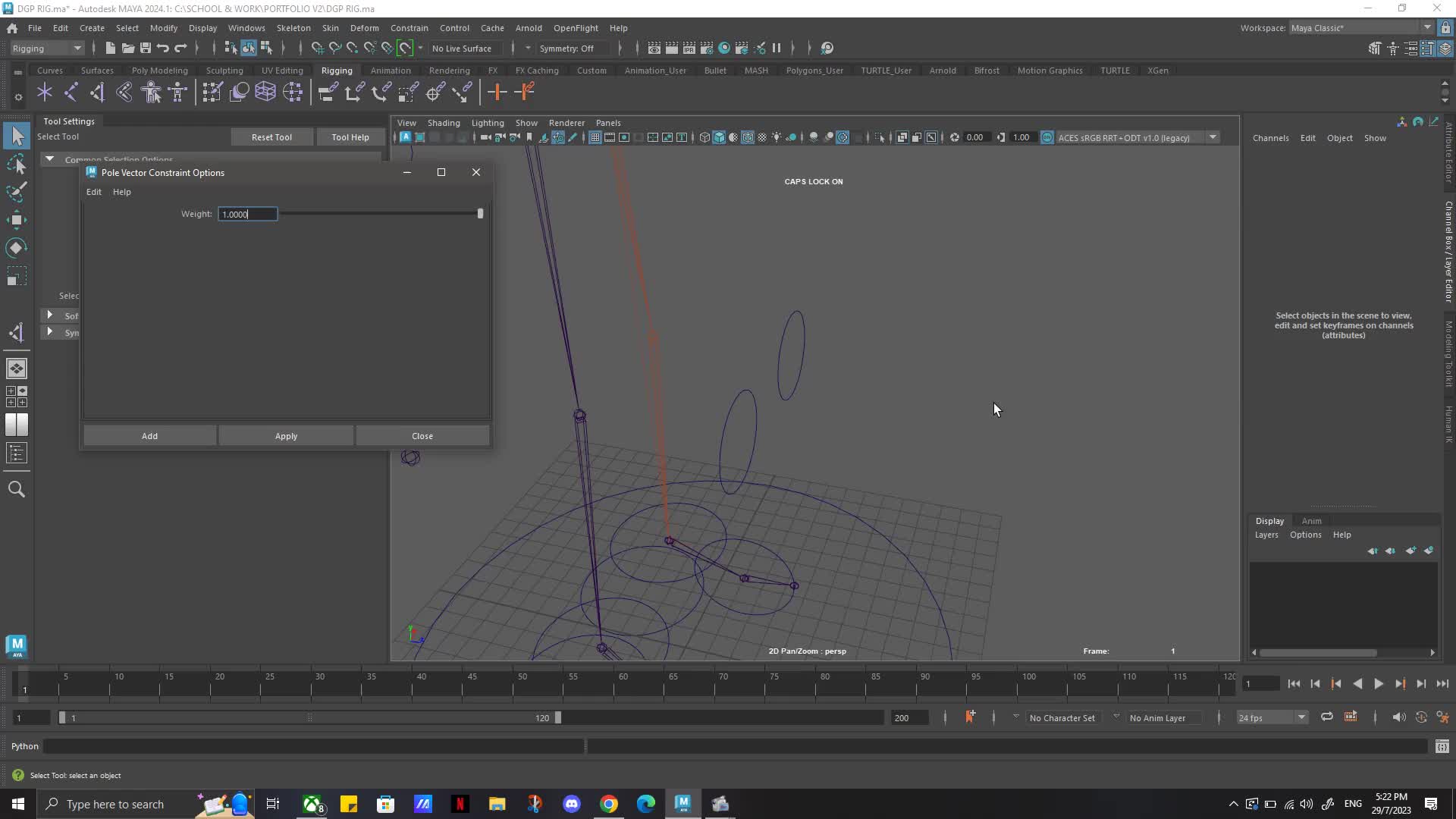
- Constraint: Finally, select the pole vector control (the shape, not the group) and then the IK handle, and apply a Constraint > Pole Vector constraint.
This method ensures that the pole vector control is always "looking" in the correct direction relative to the knee, regardless of how the leg or character is oriented in space. This prevents situations where a forward-facing world-space pole vector might conflict with a slightly angled knee joint.
Avoiding Unwanted Twists
The specific axis you move your pole vector control along is paramount. If your knee joint points slightly outward or inward, but your pole vector control is positioned directly forward in world space, the IK handle will be forced to twist the leg to satisfy both the global direction of the pole vector and the specific bend of the knee. By moving the pole vector control's group in local space relative to the knee, you create a harmonious relationship where the pole vector naturally aligns with the leg's intended bend plane, thereby eliminating those nasty twists and pops. This careful alignment makes a world of difference for smooth, predictable IK behavior.
Advanced Tips and Best Practices
Beyond the core setup, incorporating a few best practices can further enhance your rigging workflow and prevent future headaches.
Workflow Integration
- Rigging Standards: Develop consistent rigging standards for naming conventions, color-coding controls, and hierarchy organization. A clean rig is easier to debug and maintain.
- Test Thoroughly: Always test your IK chains with pole vectors through a full range of motion. Push the limits of the character's pose to identify any popping or twisting early in the development cycle.
- Referencing and Non-Destructive Workflows: When possible, build your rigs in a way that allows them to be referenced into animation scenes. This protects the original rig from accidental changes and facilitates updates. Consider using layers and non-destructive methods for skinning and deformers.
Common Pitfalls to Avoid
- Over-Complicating: For basic posing, you don't need an overly complex rig. Focus on the fundamentals first. Adding too many fancy features too early can introduce more points of failure.
- Ignoring Local Space: A recurring theme, but it bears repeating: understanding and utilizing local space transformations for joint orientations and control placements is vital for predictable rigging.
- Unfrozen Transforms: Always freeze transformations on your controls after creation, before parenting or constraining. This provides a clean slate (zero translations, rotations, and scale of 1) for animators.
- Misunderstanding Joint Orientations: Take the time to understand Maya's joint orientation system. Use the "Display Local Axis" option (Display > Transform Display > Local Rotation Axes) to visualize your joint orientations. This is an invaluable debugging tool.
- Skipping Preferred Angles: Neglecting to set preferred angles can lead to "flips" where the IK solution suddenly switches direction, especially with straight joints.
By integrating these practices and being mindful of common errors, you can significantly improve the quality and stability of your Maya rigs, making life much easier for animators. For more general rigging wisdom, explore Maya Rigging Tips: Prevent Pole Vector Annoyances.
Conclusion
Eliminating joint popping caused by pole vectors in Maya rigging might seem like a dark art, but it's a skill built on a clear understanding of fundamental principles. By meticulously ensuring your joint chains are planar, setting appropriate preferred angles, and implementing a precise, local-space-aware pole vector control setup, you can effectively banish those frustrating pops. This attention to detail not only produces a more stable and animatable rig but also empowers you with a deeper comprehension of Maya's IK system. Invest the time in these foundational steps, and you'll be well on your way to creating professional-grade character rigs that move with fluid, predictable precision, freeing animators to focus on performance rather than fighting the rig.